一、安装准备
Harbor 可通过 Docker Compose 部署至 Docker 主机,亦可借助 Helm 部署到 Kubernetes 集群。
1、资源需求
下表列出了部署 Harbor 所需的最低及推荐资源配置要求。
| 最低要求 | |
|---|---|
| CPU | 支持 64 位的 Intel® 或 AMD 处理器*;2 GHz 或速度更快的处理器 |
| 内存 | 4 GB 或更大 RAM(推荐使用 8 GB) |
| 硬盘 | 需要 50GB 以上的可用磁盘空间(磁盘大小需要根据实际使用场景来确定) |
| 操作系统 | CentOS 7 或更高版本 |
2、软件堆栈需求组合
下表列出了目标主机上必须安装的软件版本。
| 软件 | 版本 | 描述 |
|---|---|---|
| Docker 引擎 | 版本 > 20.10 | Docker 引擎安装 |
| Docker Compose | Docker Compose > 2.3 | Docker Compose 是 Docker Engine 的一部分 |
| OpenSSL | 最新(可选) | 用于生成 Harbor 的证书和密钥 |
3、网络端口
Harbor 要求目标主机上开放以下端口。
| 端口 | 协议 | 描述 |
|---|---|---|
| 443 | HTTPS | Harbor 门户及核心 API 通过此端口接收 HTTPS 请求。您可在配置文件中修改此端口。 |
| 80 | 超文本传输协议 | Harbor 门户及核心 API 在此端口接受 HTTP 请求。您可以在配置文件中修改此端口。 |
二、环境设置
1、设置镜像源
因为国外镜像网速较慢,推荐设置阿里云镜像源:https://opsx.alibaba.com/mirror
1.1、备份
[root@harbor ~]# mv /etc/yum.repos.d/CentOS-Base.repo /etc/yum.repos.d/CentOS-Base.repo.backup1.2、下载新的CentOS-Base.repo 到/etc/yum.repos.d/
[root@harbor ~]# wget -O /etc/yum.repos.d/CentOS-Base.repo http://mirrors.aliyun.com/repo/Centos-7.repo或者
[root@harbor ~]# curl -o /etc/yum.repos.d/CentOS-Base.repo http://mirrors.aliyun.com/repo/Centos-7.repo1.3、之后运行yum makecache生成缓存
[root@docker]# sudo yum makecache all;1.4、执行yum update 更新系统组件到最新版本
[root@docker]# sudo yum update -y;2、配置静态IP
通常在/etc/sysconfig/network-scripts目录下都会有 ifcfg-eth0 格式文件,修改该文件内容:
[root@harbor ~]# vim /etc/sysconfig/network-scripts/ifcfg-eth0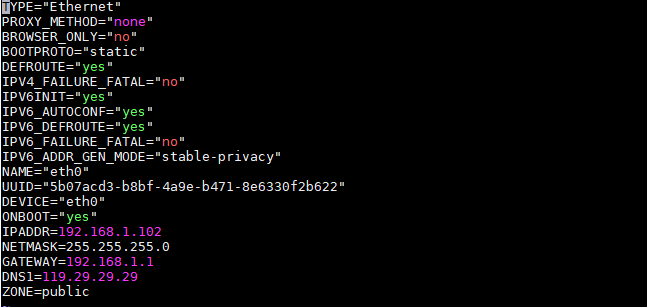
主要修改BOOTPROTO="static"、ONBOOT="yes",并增加 IPADDR、NETMASK、GATEWAY、DNS1。
TYPE="Ethernet"
PROXY_METHOD="none"
BROWSER_ONLY="no"
BOOTPROTO="static"
DEFROUTE="yes"
IPV4_FAILURE_FATAL="no"
IPV6INIT="yes"
IPV6_AUTOCONF="yes"
IPV6_DEFROUTE="yes"
IPV6_FAILURE_FATAL="no"
IPV6_ADDR_GEN_MODE="stable-privacy"
NAME="eth0"
UUID="5b07acd3-b8bf-4a9e-b471-8e6330f2b622"
DEVICE="eth0"
ONBOOT="yes"
IPADDR=192.168.1.102
NETMASK=255.255.255.0
GATEWAY=192.168.1.1
DNS1=119.29.29.29
ZONE=public
重启网卡
[root@harbor ~]# service network restart3、关闭防火墙或开放指定端口
3.1、常用命令
[root@harbor]# systemctl start firewalld    启动
[root@harbor]# systemctl stop firewalld    关闭
[root@harbor]# systemctl status firewalld    查看状态
[root@harbor]# systemctl disable firewalld    开机禁用
[root@harbor]# systemctl enable firewalld    开机启用
3.2、开放端口:
| 端口 | 协议 | 描述 |
|---|---|---|
| 443 | HTTPS | Harbor UI和API将接受此端口上的https协议请求 |
| 4443 | HTTPS | 只有在启用Notary时才需要连接到Docker Content Trust服务 |
| 80 | HTTP | Harbor UI和API将接受此端口上的http协议请求 |
4、系统优化
4.1、配置主机时间、时区、系统语言
查看时区
[root@rancher]# date -R 或者 timedatectl修改时区
[root@rancher]# ln -sf /usr/share/zoneinfo/Asia/Shanghai /etc/localtime修改系统语言环境
[root@rancher]# sudo echo 'LANG="en_US.UTF-8"' >> /etc/profile;source /etc/profile配置主机NTP时间同步
4.2、修改文件权限
vi /etc/security/limits.conf
# 在文件末尾追加
* soft nofile 655360
* hard nofile 655360
* soft nproc 655360
* hard nproc 655360
# 重启后配置生效
reboot
4.3、内存&并发数
vi /etc/sysctl.conf
# 配置文件后面追加
vm.max_map_count=655360
fs.file-max=655360
# 使配置生效
sysctl -p
4.4、 调整进程数
vi /etc/security/limits.d/20-nproc.conf
# 配置文件后面追加
*          soft    nproc     4096
root       soft    nproc     unlimited
4.5、Kernel 性能调优
通过如下命令进行宿主机内核性能调优,实际参数数值根据实际环境自行配置,最后执行
sysctl -p保存配置。
cat >> /etc/sysctl.conf<<EOF
vm.max_map_count = 6553000
vm.swappiness = 1
fs.file-max = 100000000
net.ipv6.conf.all.disable_ipv6 = 1
net.ipv6.conf.default.disable_ipv6 = 1
net.ipv4.neigh.default.gc_stale_time = 120
kernel.msgmnb = 65536
kernel.msgmax = 65536
net.ipv4.tcp_max_tw_buckets = 6000
net.ipv4.tcp_sack = 1
net.ipv4.tcp_window_scaling = 1
net.ipv4.tcp_rmem = 4096 87380 4194304
net.ipv4.tcp_wmem = 4096 16384 4194304
net.core.wmem_default = 8388608
net.core.rmem_default = 8388608
net.core.rmem_max = 16777216
net.core.wmem_max = 16777216
net.ipv4.tcp_max_orphans = 3276800
net.ipv4.tcp_max_syn_backlog = 262144
net.ipv4.tcp_timestamps = 0
net.ipv4.tcp_synack_retries = 1
net.ipv4.tcp_syn_retries = 1
net.ipv4.tcp_tw_recycle = 1
net.ipv4.tcp_mem = 94500000 915000000 927000000
net.ipv4.tcp_fin_timeout = 1
net.ipv4.ip_forward = 1
net.bridge.bridge-nf-call-iptables = 1
net.bridge.bridge-nf-call-ip6tables = 1
net.ipv4.neigh.default.gc_thresh1 = 4096
net.ipv4.neigh.default.gc_thresh2 = 6144
net.ipv4.neigh.default.gc_thresh3 = 8192
EOF
然后重新加载 sysctl.conf 即可
$ sudo sysctl -p作者:Jeebiz 创建时间:2023-02-12 01:54
最后编辑:Jeebiz 更新时间:2025-12-10 15:39
最后编辑:Jeebiz 更新时间:2025-12-10 15:39